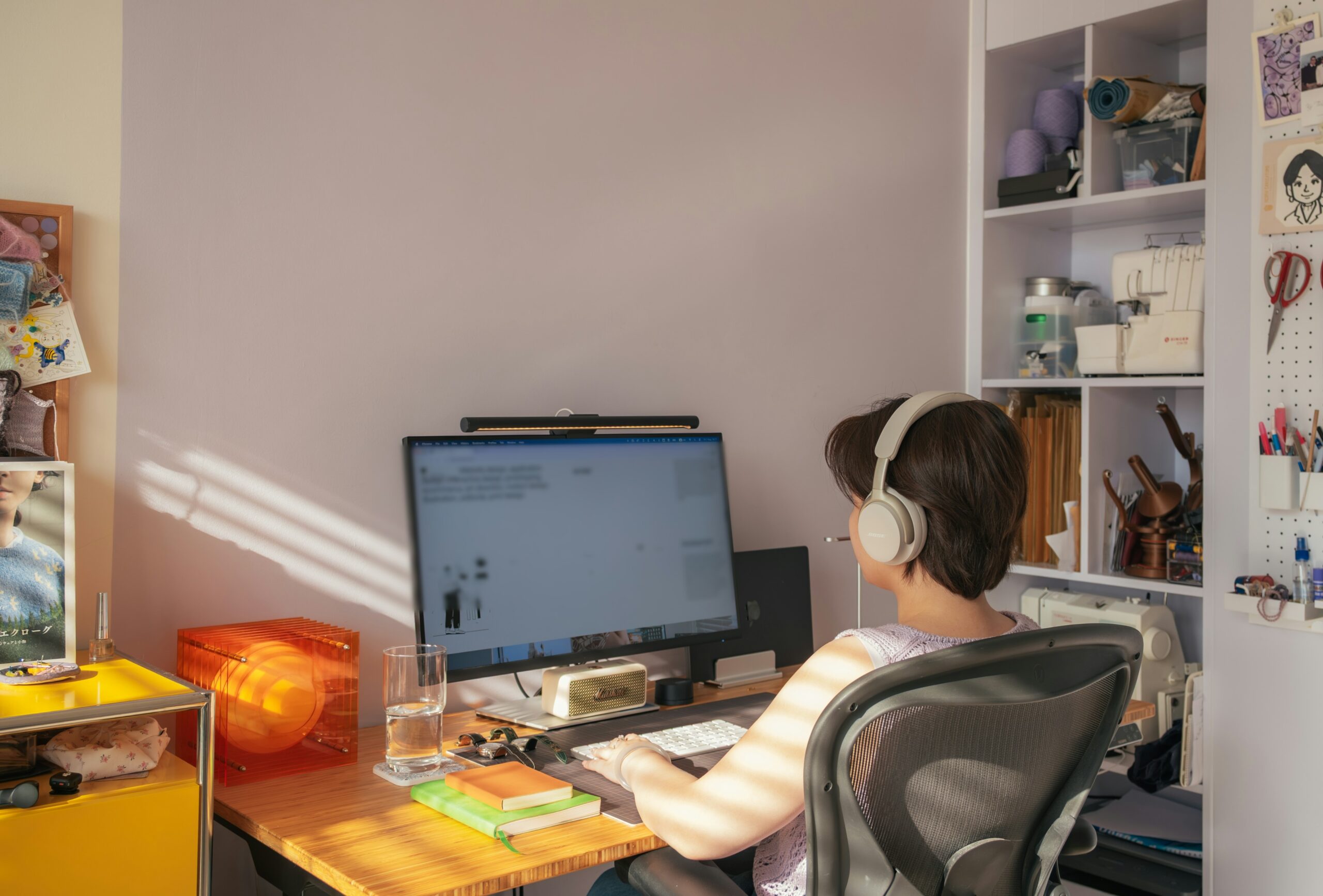
Your home office, fully working
A mic that doesn’t work, a printer that can’t be found, a blurry camera, Wi-Fi that drops in the middle of a meeting? We install and configure your whole remote work setup, so you can work with peace of mind.
Working from home, without the headaches
Remote work is convenient… when everything works. But between the work computer, the monitors, the docking station, the camera, the mic, the printer and the Wi-Fi, many people waste a huge amount of time trying to figure out why “it doesn’t work.”
We come to your home, install and connect everything, configure Teams, Zoom or Google Meet, and test with you until every piece works perfectly. You end up with a workstation ready to go.
- Remote or hybrid workers
- People who receive a computer from their employer
- Self-employed workers setting up their office

“Can you hear me?” Find the weak link
Sound goes through several links before it reaches your coworkers. Pick the symptom: we check the chain in order, just like during a visit.
Pick a symptom above, then “Play”. In red: the link causing the problem, with the fix.
- Is the headset muted? Many have a button or a mic boom that mutes when you flip it up.
- Bluetooth connected to the right device? USB cable fully plugged in?
- Often the culprit: Windows is still using the laptop mic. Settings › System › Sound › Input: choose the headset.
- In Teams: Settings › Devices, choose the same mic. Also check that Teams is allowed to use the microphone (Privacy › Microphone).
- To confirm: Teams’ test call (or Zoom’s audio test) plays your voice back to you.
- Your mic picks up your speakers: what your coworkers say comes back to them as an echo.
- Teams and Zoom remove some echo, but not all of it, especially with the volume maxed out.
- Easy fix: a headset (sound no longer goes into the room). Several people in the same room? Only one keeps their audio on.
- The mic is fine: the problem is further down the chain.
- On Bluetooth, when the mic turns on, quality drops (“hands-free” mode) and distance or walls cut the signal.
- Weak Wi-Fi, or shared with a big download: voice packets arrive late or get lost.
- The fix: a network cable (or move closer to the router) and a wired or USB headset for important meetings.
- Teams may be sending sound elsewhere, often to the monitor connected by HDMI. Settings › Devices › Speaker.
- Check the Windows volume and the volume mixer: Teams may be set to zero.
- Headset plugged in and on? Play a video to confirm it works.
The mic picks up your voice. A headset with a mic near your mouth almost always sounds better than the laptop’s built-in mic.
USB, 3.5 mm jack or Bluetooth: each has its pitfalls. Bluetooth is handy, but less reliable for meetings.
Windows picks a “default” mic and speaker. If it picks the wrong one, everything else follows.
Teams and Zoom have their own device settings, sometimes different from Windows.
Your voice travels in small packets. Weak or busy Wi-Fi delays or drops them.
The end of the chain: what they actually hear.
Your whole workstation, from cable to software
Computer and monitors
Docking station, two monitors, proper resolution and an ergonomic layout.
Camera and mic
Clear picture, echo-free sound, the right settings in Teams, Zoom or Meet.
Printer and peripherals
Printer, scanner, keyboard, mouse and headset: everything is recognized.
Wi-Fi and connection
Stable signal in the office, speed test and your employer’s VPN.
Is your workspace well thought out?
Good setup or trouble ahead?
Sort each remote work situation.
Is your remote work setup ready?
Check what already works well at your place.
4 quick questions. You see the right answer right away.
Problems we often fix
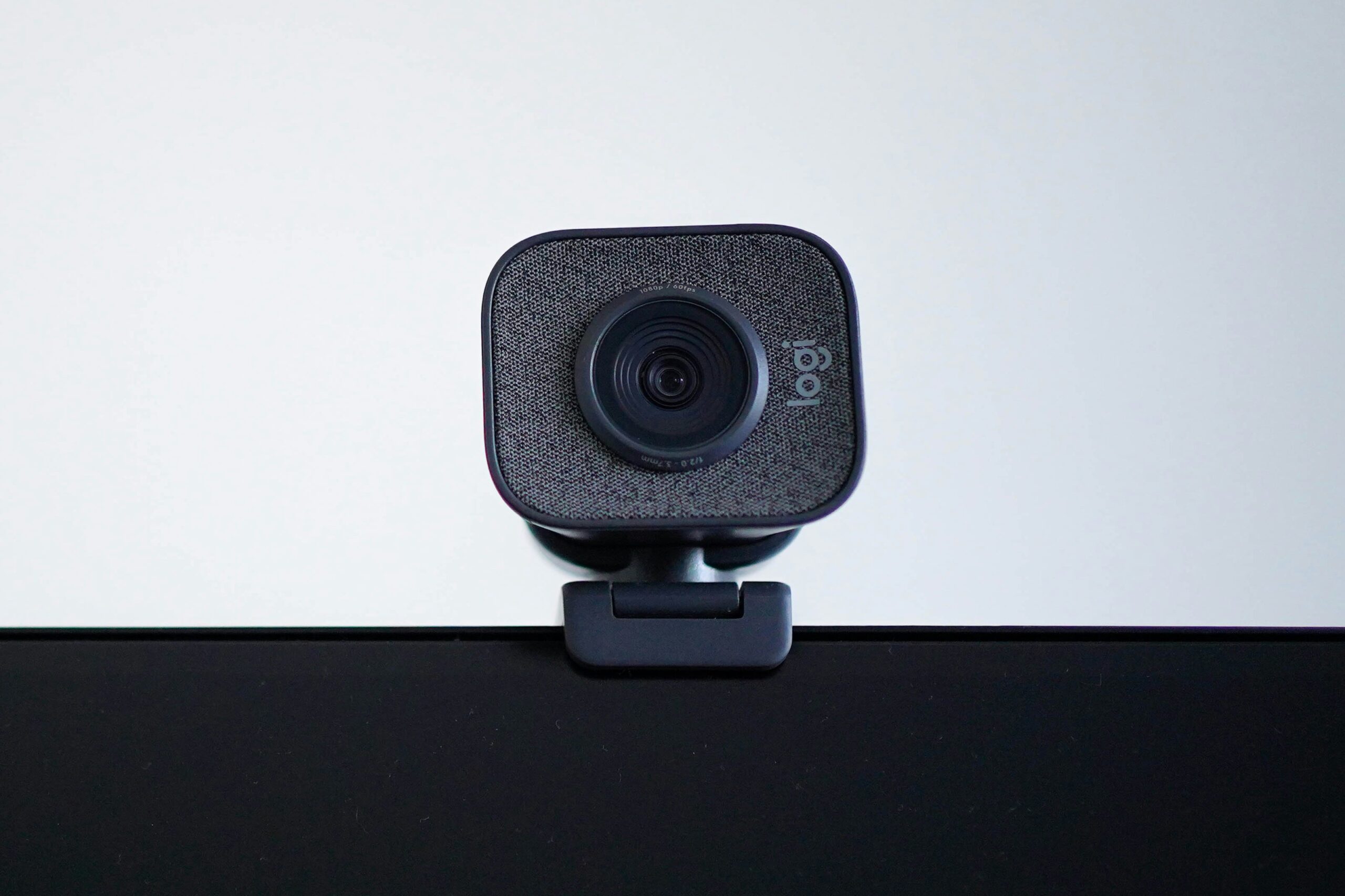
“Can you hear me?”
In the middle of a meeting, coworkers hear an echo, or nothing at all. The headset was plugged in, but Teams was still using the laptop’s mic.
What we fix: Choosing the right devices and making a test call before each meeting.
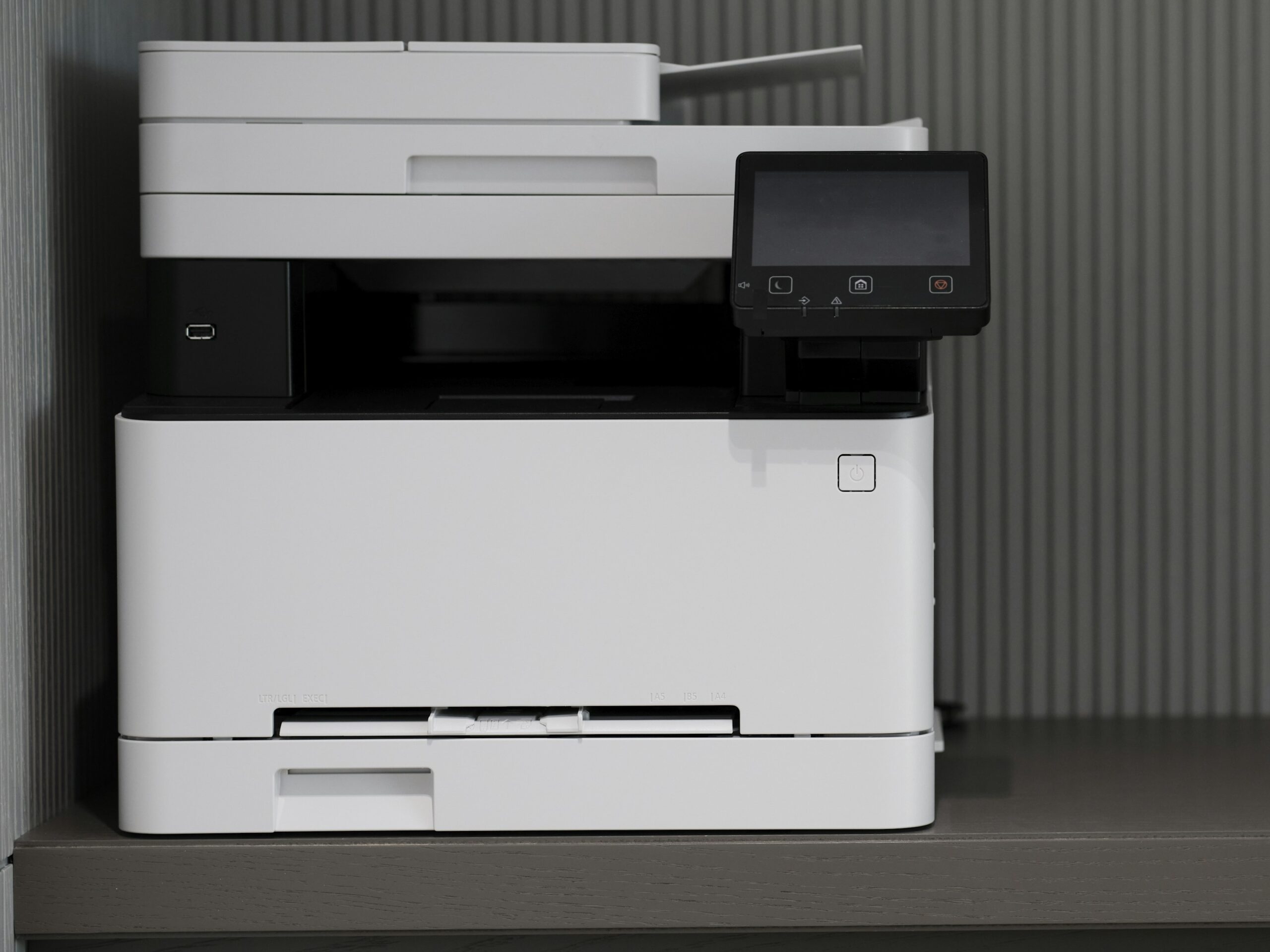
The printer the computer can’t see
The printer is right there, turned on, but the work computer refuses to find it. Drivers, network, permissions: we fix it all.
What we fix: Installing the printer properly, on the right network.
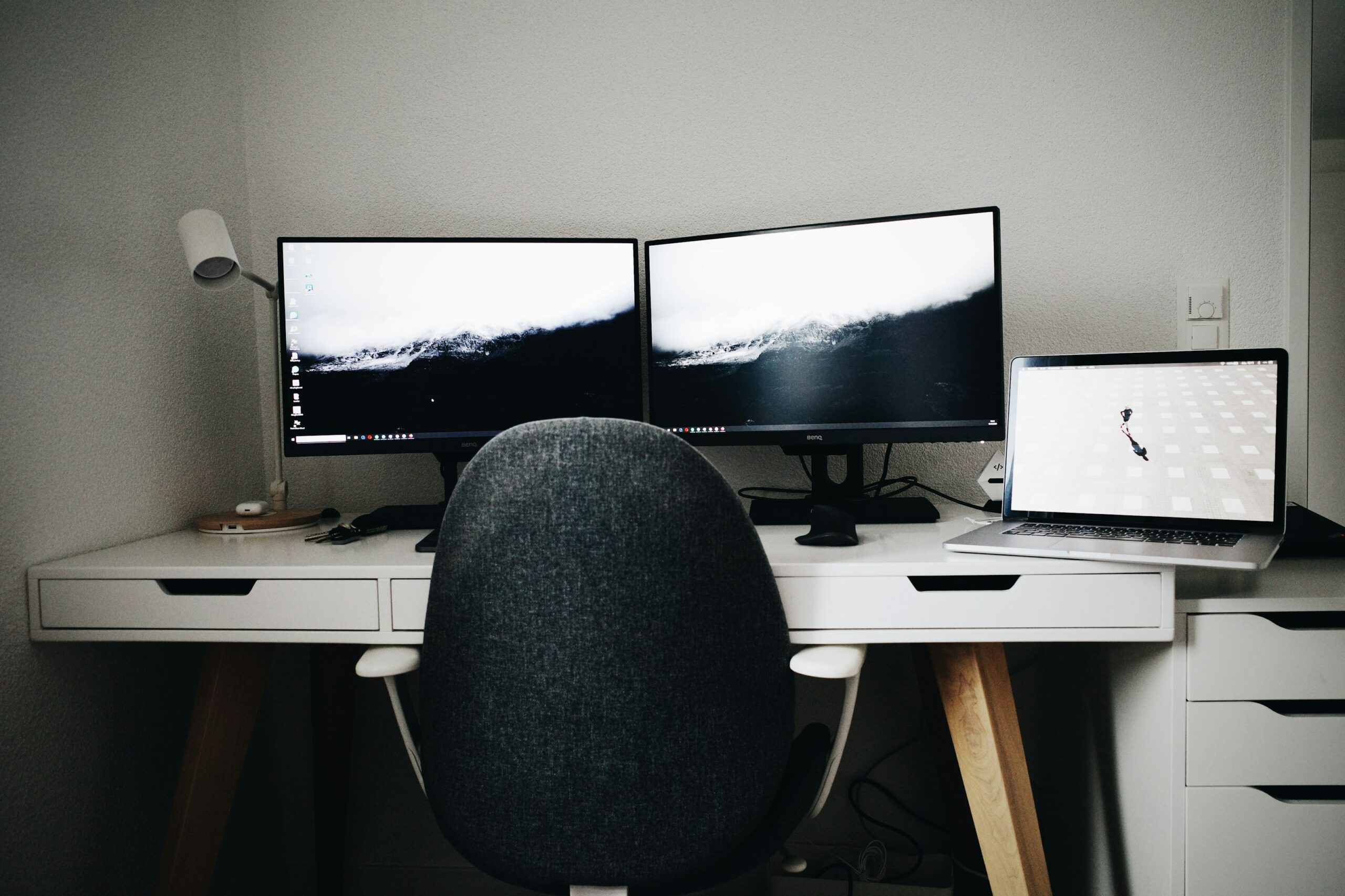
Two monitors, finally set up right
Screen too low, wrong resolution, mouse that “jumps” from one screen to the other: a well-done setup changes your whole day.
What we fix: Docking station, proper layout and display settings.
An ergonomic setup, box by box
Check what’s true for you: the illustration adjusts and your score goes up. Six out of six is a setup that won’t hurt your back by 4 p.m.
From your email to the live test
Your situation
Describe your equipment and what isn’t working.
Home visit
We assess the space, the equipment and the connection.
Installation
Complete connection, configuration and settings.
Live test
Test video call and printing: everything has to work.
Light, cable, headset: what matters
Before we come over
Can you set up the computer provided by my employer?
Yes, while respecting your employer’s rules. We take care of the connections, monitors, peripherals and connection. Company-specific access remains managed by its IT department.
My mic works poorly in Teams. Can you fix that?
Yes: choosing the right device, levels, noise suppression and a test call. It’s one of the most common problems.
Can you recommend equipment?
Yes. We recommend a camera, mic, headset or monitor that fits your budget, and then install it.
How long does the installation take?
For a typical workstation, allow about 1 to 2 hours, testing included.
Do you offer support after the installation?
Yes. If something stops working, we can help you remotely or come back on site if needed.
Plan your home office setup
Describe your equipment and what’s not working: we’ll get back to you with a setup plan.