
Protect the whole family online
Wi-Fi, parental controls, passwords and backups: the right settings and the right reflexes for the whole household.
Home is also a target
Fraudsters don’t just target businesses. Hacked accounts, fake ads, text scams: families are affected every day.
We go through your devices with you, adjust the important settings and explain how to keep everything secure afterwards.
- Parents of young children and teens
- Families with several devices
- People who want to protect their photos and documents
How the scammer pulls it off
Follow two very real scams, step by step. At each message, we show you what’s going on behind the scenes.
Press “Start” to play the scenario.
- Grandma? It’s me… Do you recognize me?The scammer doesn’t say his name: he waits for you to say it for him.
- Kevin? Is that you?Without realizing it, we just gave him the missing piece. From now on, he “is” Kevin.
- Yes! I had an accident and I’m at the police station. I need $4,000 to get out today.Urgency + emotion + money: that’s the basic recipe. Panic stops you from thinking.
- Please don’t tell Mom and Dad, I’m so ashamed.He isolates you: if you don’t tell anyone, you can’t check his story.
- A “lawyer” takes over the call…An accomplice plays an official role to make the story believable.
- I’m your grandson’s lawyer. A courier will come pick up the cash at your home within the hour.No lawyer, police officer or judge sends someone to your door to collect money. Ever.
- Hang up, then call your grandson (or his parents) back at the number you know. Agree on a family code word. Report the call to the Canadian Anti-Fraud Centre: 1-888-495-8501.
Press “Start” to play the scenario.
- ⚠️ MICROSOFT ALERT: your computer is infected. Do not turn it off. Call technical support immediately at 1-888-555-0199.Microsoft never shows a phone number to call in an alert. It’s just a web page imitating an error screen: it can’t do anything to your computer.
- Hello? My computer has a virus?On the line: a fake technician, very polite and reassuring.
- Don’t worry. Install this small program so I can look at your computer remotely.He has you install remote-control software. Once connected, he sees and controls your whole screen.
- I see 37 viruses! The cleanup costs $299. Open your banking site for the payment.He passes off normal Windows messages as viruses, then goes after your money and your banking access.
- Close the page (or restart the computer), never call the number shown, and don’t let anyone take control unless you asked for help. If it already happened: unplug the Internet, call your bank and have the computer checked.
A safer home
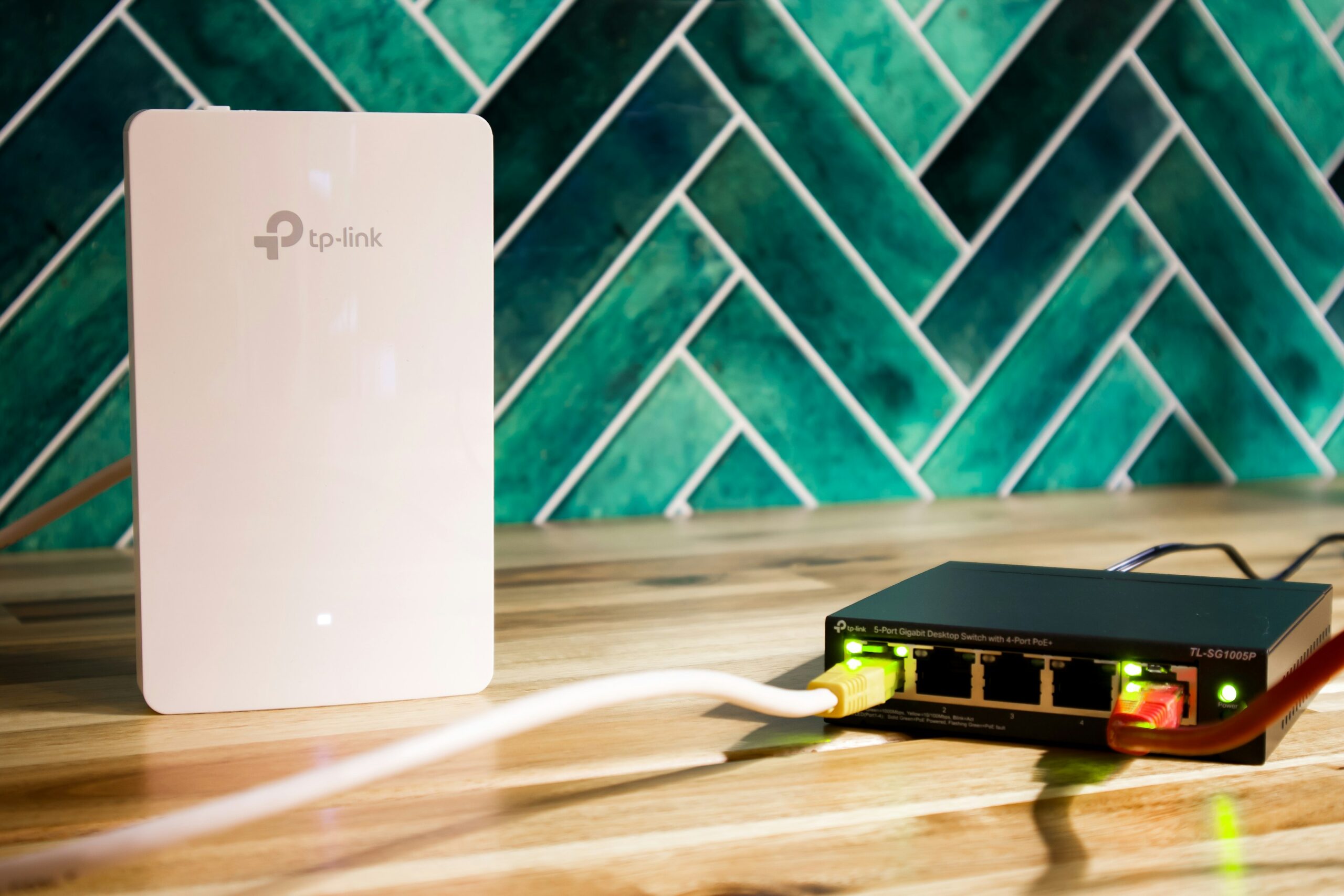
Secure Wi-Fi
Router password, guest network and updates.
Parental controls
Screen time, apps and content suited to each child.
Passwords
Password manager and two-factor authentication.
Backups
Photos and documents protected, even if a device breaks.
Could you spot the trap?
Safe or risky?
Sort these family habits. Do it with your kids!
Is your home well protected?
Check what is already done at home.
4 quick questions. You see the right answer right away.
Situations that are part of everyday life

The “free” game that cost a lot
A child made in-game purchases with the card saved on the family tablet. The bill arrived at the end of the month.
Best practice: Turn on purchase approval and parental controls.
A private message from a stranger
A teenage girl receives messages from a “friend of a friend” who insists on getting photos and personal information.
Best practice: Privacy settings, open discussion and reporting.

The lost family photos
The old laptop held 10 years of photos. It stopped working, with no backup at all.
Best practice: An automatic backup to the cloud or to an external drive.
Guest Wi-Fi or main network?
Visitors and smart devices don’t need to see your computers. Turn on the guest network and watch what changes.
How we secure your home
First contact
Tell us about your family and your devices.
Home walkthrough
We spot what needs adjusting.
Settings together
We configure everything and explain each step.
Good reflexes
Quick-reference sheet for the whole family.
Would your photos survive a disaster?
Choose your copies, then trigger an incident. The 3-2-1 rule: 3 copies, on 2 different types of storage, with 1 outside the house.
What parents want to know
What families ask us
Can the class include the kids?
Yes, and it’s even recommended: young people learn the right reflexes at the same time as their parents.
Do you configure the devices yourself?
We do it together, so you understand what is in place and can adjust it later.
Where are the classes given?
At your home in Granby and the surrounding region, or online, whichever suits you best.
Can you set up game consoles too?
Yes: Xbox, PlayStation, Nintendo, tablets and phones. We adjust the settings according to each child’s age.
How long does the visit last?
For a typical family, allow about 2 to 3 hours to go through the devices and important settings.
Book your security class
Tell us how many devices and users you have at home: we’ll suggest a clear plan.